
Demo Bank
The Demo Bank is Fintecture's mock banking provider for sandbox testing. It simulates the bank experience in Connect, letting you control the payment outcome directly.
For the full end-to-end testing workflow, see Testing Complete Payment Flows in Sandbox.
What is the Demo Bank
When accessing Connect in sandbox, the tester can select the Demo Bank instead of a real bank. The Demo Bank presents a simplified bank interface where the tester can choose the payment outcome directly.
Key characteristics:
- Available in sandbox only
- Available for some countries (France, Spain, Germany, Italy, Belgium)
- No real banking credentials needed
- The tester controls the outcome: success, pending, or rejected
- Supports both external and acquiring beneficiary accounts
The Demo Bank is identified internally by mnemonics starting with ftec: ftecfr (France), fteces (Spain), ftecde (Germany), ftecit (Italy), ftecbe (Belgium).
How to use it
1. Create a payment session
Create a payment session via Console as you normally would. Make sure you're using your sandbox credentials.
2. Open Connect
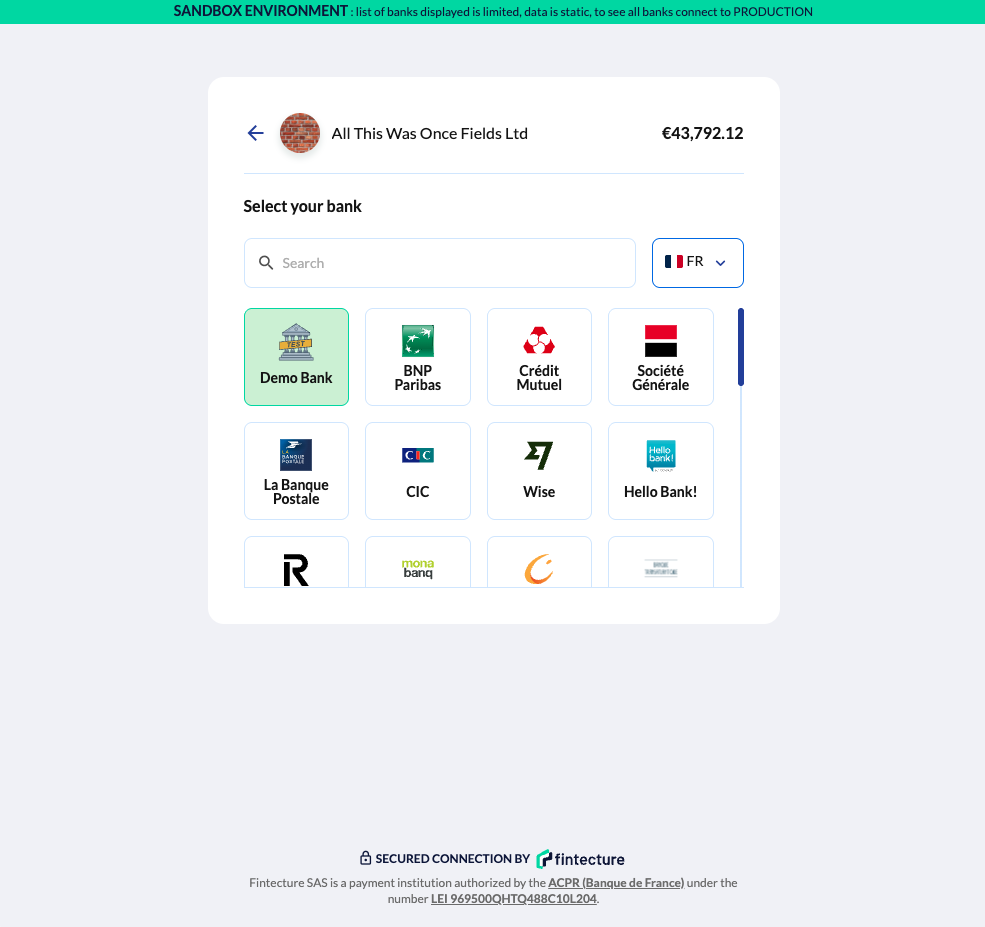
Open the Connect URL from the payment session. In the bank selection screen, search for or select "Demo Bank" (listed under the corresponding country).
3. Choose the outcome
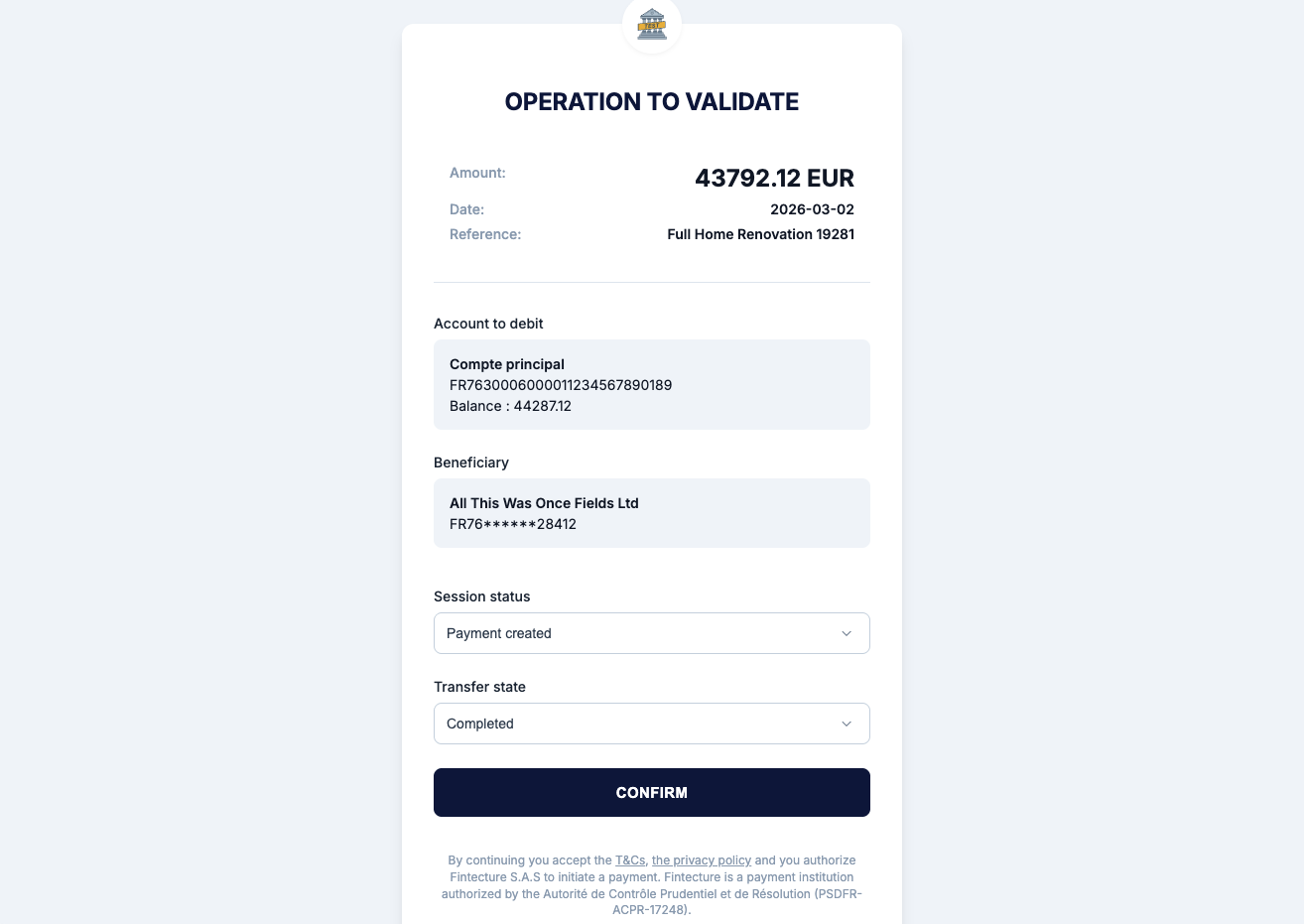
The Demo Bank shows a simplified bank screen with the payment details (amount, creditor, debtor IBAN). From this screen, the tester can choose the payment result:
| Action | Resulting session_status | transfer_state | Description |
|---|---|---|---|
| Confirm payment | payment_created | completed | Payment succeeds immediately. Default happy path. |
| Confirm payment (received) | payment_created | received | Payment succeeds with settlement confirmed. Available when beneficiary is an acquiring account. |
| Set as pending | payment_pending | pending | Payment is left in a pending state, waiting for bank confirmation. Use Bank Transition to resolve. |
| Reject payment | payment_unsuccessful | rejected | Payment is rejected by the bank. |
Tip: For acquiring accounts, choosing "received" automatically simulates the credit transaction on the acquiring account, so you don't need a separate Credit simulation step.
Demo Bank vs real bank sandboxes
| Demo Bank | Real bank sandboxes (e.g. Credit Mutuel, CIC) | |
|---|---|---|
| Availability | Several countries | Country-specific |
| Credentials | None needed | Bank-specific test credentials |
| Outcome control | You choose the result | Depends on bank sandbox behavior |
| Predictability | Fully predictable | May change without notice |
| Bank Transition support | Yes — can use Bank Transition simulation on pending payments | Yes — can also use Bank Transition on pending payments |
| Use case | Standard integration testing, automated tests | Testing specific bank flows, edge cases |
When to use each
- Demo Bank: Use for most integration testing. It's reliable, predictable, and works for all supported countries.
- Real bank sandboxes: Use when you need to test a specific bank's behavior, or to verify the UX with a real-looking bank interface.
Immediate Transfer scenarios
With Demo Bank
| Target status | How to reach it | Next step |
|---|---|---|
payment_created | Select Demo Bank > Confirm payment | Done (external) or simulate settlement (acquiring) |
payment_pending | Select Demo Bank > Set as pending | Bank Transition to resolve |
payment_unsuccessful | Select Demo Bank > Reject payment | Flow ends |
payment_cancelled | Cancel the session via Console | Flow ends |
payment_expired | Set 1-second expiry on session creation | Flow ends |
With real bank sandboxes
| Target status | Country | Scenario |
|---|---|---|
provider_required | All | Default status — no action needed in Connect |
sca_required | FR | Select Credit Mutuel > Click "Continue on Credit Mutuel" |
payment_created | FR | Select Credit Mutuel > "Continue on Credit Mutuel" > "Se connecter" > "Confirmer" |
payment_unsuccessful | FR | Select Credit Mutuel > "Continue on Credit Mutuel" > "Se connecter" > "Abandonner" |
payment_pending | FR | Select CIC Privee > "Continue on CIC Privee" > "Se connecter" > "Abandonner" |
payment_cancelled | All | Cancel via Console |
payment_expired | All | Set 1-second expiry on session creation |
Note: Real bank sandboxes may change their behavior. If a scenario no longer works, contact support.
Smart Transfer scenarios
Smart Transfer uses virtual IBANs and always requires an acquiring account.
| Target status | How to reach it |
|---|---|
provider_required | Default — no action in Connect |
sca_required | Select "Bank Transfer" in Connect |
payment_pending | Select "Bank Transfer" > "Display the beneficiary's IBAN" > "Complete the bank transfer" > "I confirm" |
payment_created | After payment_pending: simulate a Credit with the expected amount |
payment_partial | After payment_pending: simulate a Credit with a lower amount |
payment_created (overpaid) | After payment_pending: simulate a Credit with a higher amount |
payment_cancelled | Cancel via Console |
payment_expired | Set 1-second expiry on session creation |
Related guides
| Guide | What it covers |
|---|---|
| Testing Complete Payment Flows | Full end-to-end testing workflow with all phases |
| Event Simulator | Credit, Debit, and Bank Transition simulations |
| Payment Session Status | All possible statuses and their definitions |
Updated 8 months ago